
Jono Catliff shows four steps to copy a site's motion graphics, 3D animation or scroll effect: install the free REA tool, open a page, extract the effect, apply it to your own site.
Kevin Stratvert connects Claude Desktop to Blender with the official connector and MCP add-on, then describes a colorful cookie shop, edits lighting and signage, animates the camera and renders a 1080p MP4, all in plain language.
Kevin Stratvert · YouTube · published Nov 18, 2026 · Design & Creative
 ▶ Watch on YouTube
Using Blender, create a colorful 3D cookie shop. Then add a few outdoor tables and chairs and some colorful flowers near the entrance. Change the lighting to nighttime with a warm glow in the windows, make the sign say [name], and add texture and detail to the storefront. Animate the camera slowly moving around the shop and make the giant cookie above the entrance rotate slowly. Finally render it as a 1080p MP4 and save it to my desktop.
Install the official Blender connector in Claude Desktop plus a small Blender MCP add-on, and Claude can build, edit, animate and render a 3D scene from plain-language prompts.
The problem: Making 3D models and animations in Blender by hand takes manual modeling, lighting and keyframing.
You need Blender (free; Windows, Mac, Linux) and Claude Desktop.
Rendering can take a while, depending on scene complexity and your computer.
Distilled from the video’s captions
Jono Catliff shows four steps to copy a site's motion graphics, 3D animation or scroll effect: install the free REA tool, open a page, extract the effect, apply it to your own site.

Brock Mesarich uses Higgsfield to generate layered SVG scenes, then has Claude Code animate them so the scene intensifies while Claude works and celebrates when done.

Skill Leap AI gives Claude Fable 5.2 a screenshot of an analytics dashboard, and it rebuilds it as a working dashboard that can connect to live numbers via Claude Data.
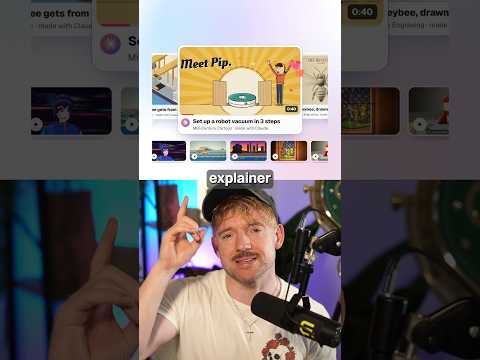
Jack uses the Lemo skill so Claude writes the story, voiceover and music from one sentence and animates every frame in code, in about ten minutes with 66 film styles.